
Step Aside, Pi-Hole: Why Adguard Home is the DNS Hero Your Homelab Deserves
If you’ve been in the homelab world for more than a week, you’ve heard of Pi-Hole. It’s the go-to project for blocking ads and trackers, a rite of passage for anyone with a spare Raspberry Pi. And for that, it deserves our respect. It showed us what was possible.
But it’s time to be honest: Pi-Hole is the past. If you’re ready to get serious about your network’s security, performance, and control, it’s time to graduate to Adguard Home.
In a Dangerous Digital World, Your Router is Your First Guardian
The internet is no longer a passive library of information; it’s an active, and often hostile, environment. The Information Security landscape changes daily, with new threats emerging constantly. Malware, phishing scams, and ransomware are no longer distant threats—they are delivered directly to our homes through malicious ads (“malvertising”), convincing-looking fake emails, and compromised websites.
This isn’t just the opinion of homelab enthusiasts. The advice to block ads has gone mainstream, and the source is as serious as it gets. The NSA, FBI, and the Cybersecurity and Infrastructure Security Agency (CISA) have all publicly advised the use of ad blockers as a critical defense against “malvertising”—the use of malicious ads to deliver malware and compromise networks. When the nation’s top cybersecurity agencies tell you to block ads to stay safe, it’s time to listen.
Every click you or your family makes is a potential risk. Worse, thousands of invisible trackers silently profile your every move, building shockingly detailed dossiers on your family’s habits, interests, and personal lives for advertisers or, in the wrong hands, more sinister actors.
This is where Adguard Home becomes essential. It’s a free, powerful, and private DNS “firewall” that you run yourself. Think of it as a security guard standing between your home network and the open internet. It consults a blocklist of known threats, and when any device in your home—your laptop, your phone, your smart TV, even your kids’ tablets—tries to connect to a malicious domain or a tracker, Adguard simply refuses the connection. The threat is stopped before it ever has a chance to load.
For the average family, this provides a critical layer of defense that you can’t get from a standard router:
- Automatic Malware & Phishing Protection: It blocks access to sites known to host viruses or attempt to steal your credentials, protecting everyone on your network automatically.
- A Quieter, Safer Web: By blocking ad and tracker domains, it not only cleans up websites but also shuts down a primary delivery mechanism for malware.
- Protecting Your Family’s Privacy: It stops data-hungry companies from snooping on your children’s browsing habits and your family’s online activity.
- Peace of Mind: You gain granular control to enforce safe search, block adult websites, or even pause social media on specific devices, creating a safer online space for your kids.
Adguard Home isn’t just a tool for tech enthusiasts; it’s a necessary utility for any modern home. It works for your entire network, requires no software on individual devices, and gives you back control.
The Pi-Hole Problem: Great Idea, Aging Platform
Let’s be clear: Pi-Hole works. But it’s fundamentally tied to the Raspberry Pi ecosystem, and that’s where the cracks begin to show.
- 1. The Hardware Trap: Most Pi-Hole setups run on a Raspberry Pi, which means they rely on a microSD card for storage. In a role that demands constant, tiny database writes, these cards are a ticking time bomb of corruption and failure. When your DNS goes down, your entire home network grinds to a halt.
- 2. Dated and Clunky: While functional, the Pi-Hole interface feels like a relic. Features that should be simple, like setting up secure DNS-over-HTTPS (DoH) or DNS-over-TLS (DoT), require command-line tinkering and manually editing config files.
- 3. Basic Control: Want to block TikTok on your kid’s tablet but not your own phone? Good luck. Pi-Hole’s control is largely all-or-nothing, lacking the granular, per-device control modern households need.
Pi-Hole was a fantastic starting point. But in 2026, you can do so much better.
Make Adguard Home Sing on Real Hardware
Adguard Home takes the core idea of Pi-Hole and modernizes every aspect of it. The web interface is clean, powerful, and intuitive. Secure DNS protocols like DoH, DoT, and DNS-over-QUIC are simple checkboxes in the setup screen. But its real power shines when you unleash it on capable hardware.
Forget the Pi. Find yourself a fanless mini-PC or even a dusty old laptop. For a little more than the price of a new Raspberry Pi, you get:
- Rock-Solid Reliability: No microSD cards! A proper SSD means you can set it and forget it without worrying about random failures.
- Blazing Performance: DNS is the backbone of your internet experience. Every millisecond counts. A more powerful CPU can handle more requests, more blocklists, and more complex filtering rules without breaking a sweat.
- More Than Just DNS: A mini-PC has enough horsepower to run Adguard Home in Docker alongside other services like a password manager, a Ubiquiti UniFi controller, or more.
A Feast for the Eyes: Metrics That Matter
This is where Adguard Home truly embarrasses Pi-Hole, and it does it for the best price imaginable: free. The moment you log in, you’re greeted with a slick, modern dashboard that tells you everything you need to know about your network’s health and activity at a glance. No more digging through obscure menus or trying to interpret text logs.
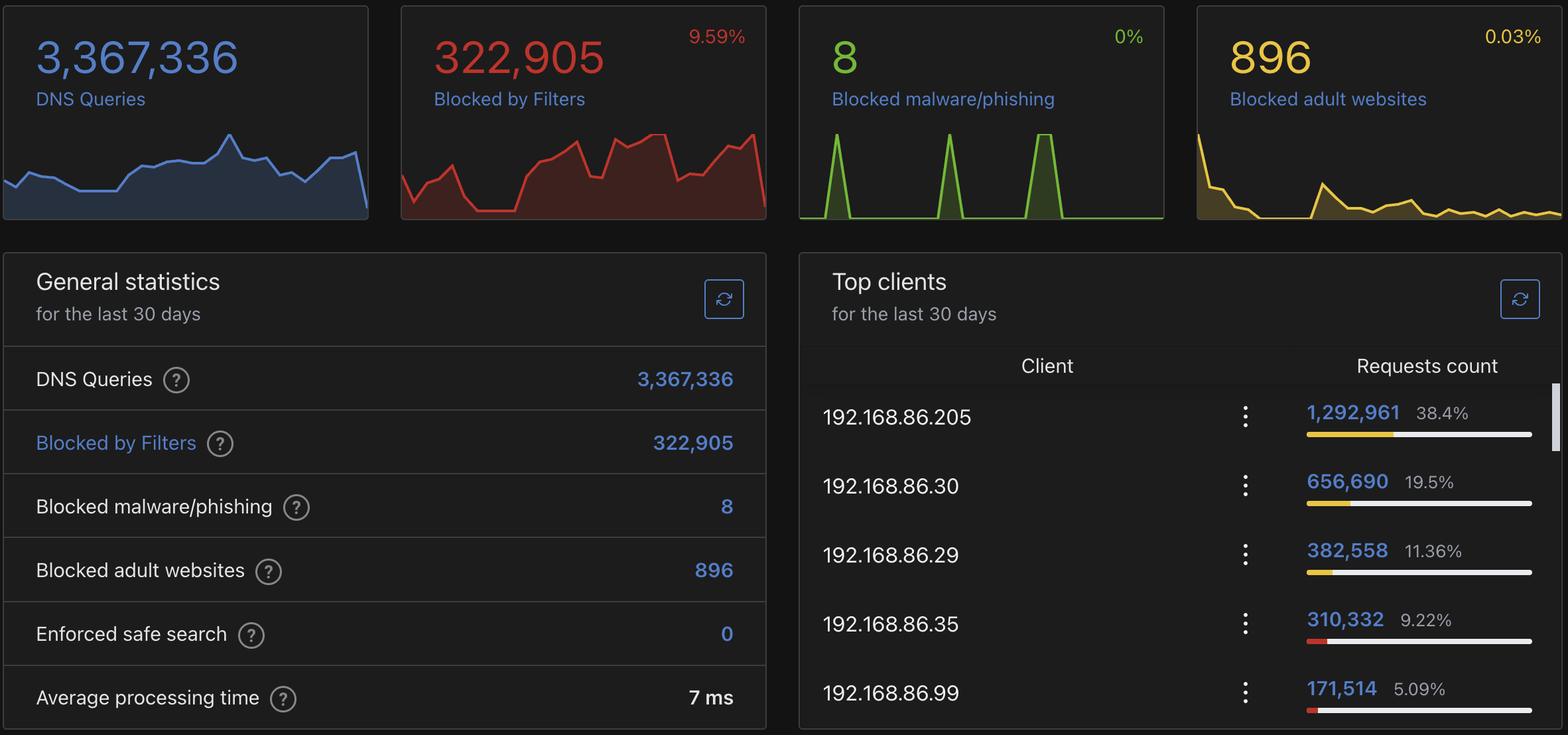
The dashboard provides a powerful, real-time overview:
- Global Statistics: See total DNS queries on your network over the last 24 hours (or week, or month), the number and percentage of queries blocked by your filters, and the number of malware/phishing threats neutralized.
- Top Clients: Instantly see which devices are the “noisiest” on your network. This is invaluable. You might discover that your smart TV is sending thousands of telemetry requests a day, or that a specific laptop is making unusual queries, hinting at a potential malware infection.
- Top Queried Domains: Find out what services your network relies on most. You’ll be shocked to see how often your devices phone home to Google, Apple, Amazon, and others.
- Top Blocked Domains: This is your trophy list. It shows you a real-time feed of all the ad, tracker, and malicious domains that Adguard has prevented your devices from contacting. It’s a tangible measure of the protection you’re getting.
But the real power lies in the Query Log. This is a masterpiece of clarity and control. You can see a live-streaming view of every single DNS request on your network: which device made it, what domain it was for, and whether it was allowed, blocked, or forwarded.
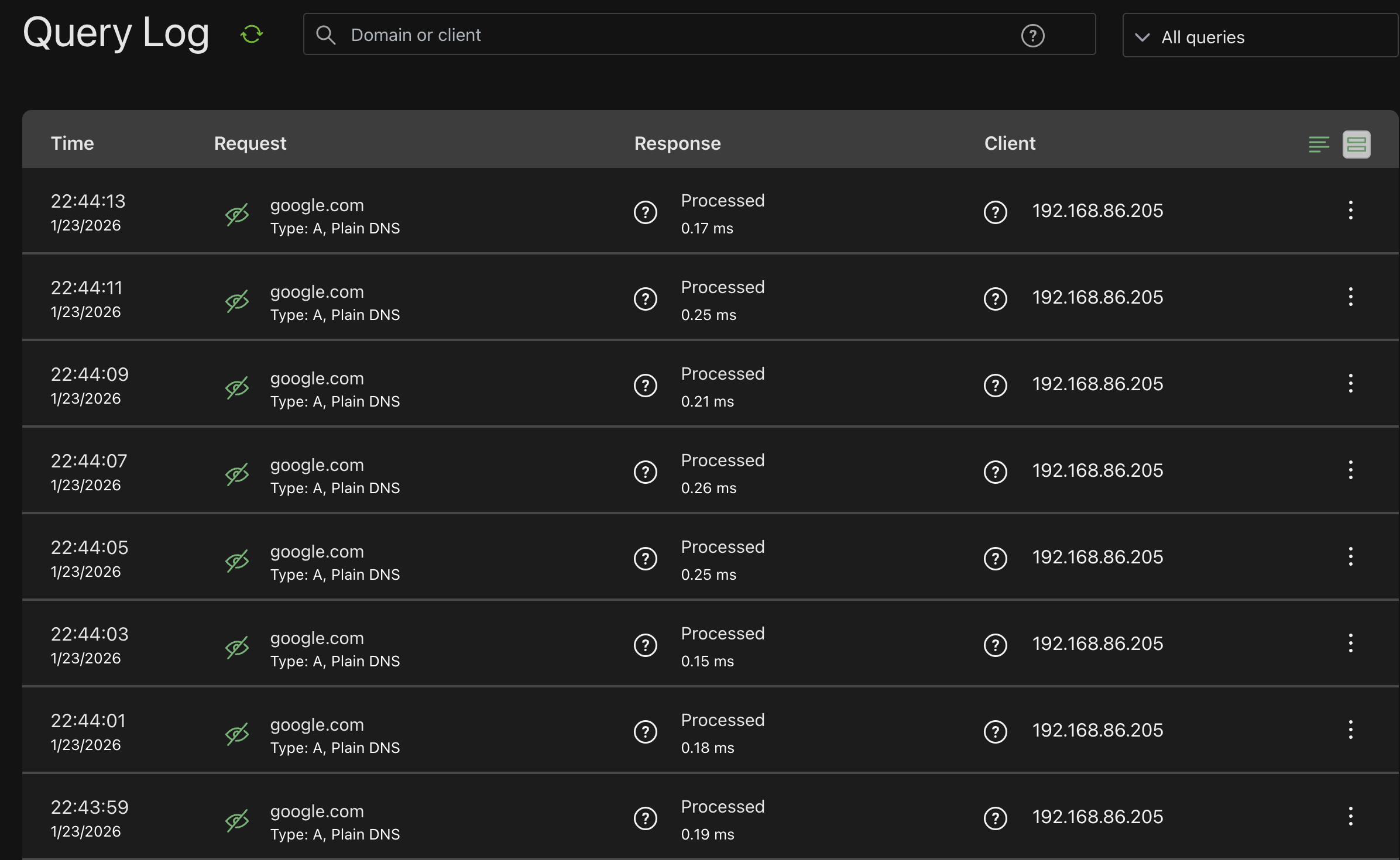
This isn’t just a log; it’s a diagnostic tool. Is your banking app suddenly not working? Filter the log by your phone’s IP address, find the domain that’s being blocked, and unblock it with a single click. It turns a frustrating troubleshooting exercise into a 30-second fix. This level of insight isn’t a novelty; it’s a window into your network’s soul, giving you the power to understand and manage it like never before.
Granular Control for the Modern Family
The “Client Settings” page is a game-changer. You can identify every device on your network and apply specific rules:
- Block Social Media: Turn off Facebook, TikTok, and Instagram on your kids’ devices with a single click.
- Enforce Safe Search: Force Google, Bing, and YouTube into their respective safe modes for specific users.
- Create Schedules: Disable gaming services or social media during homework hours.
This level of per-device control is something you’ll never want to live without once you’ve experienced it.
Your 5-Minute Setup with Docker
Ready to get started? It’s ridiculously easy with docker-compose. Here’s how.
Step 1: Create a directory on your mini-PC or server for Adguard Home.
mkdir adguard-home
cd adguard-home
Step 2: Create a file named docker-compose.yml and paste the following content into it. This configuration will ensure your Adguard data and configuration persist even if you update or restart the container.
version: "3"
services:
  adguardhome:
    image: adguard/adguardhome
    container_name: adguardhome
    ports:
      # The main DNS port
      - "53:53/tcp"
      - "53:53/udp"
      # The admin UI setup port (change 3000 to something else if it's taken)
      - "3000:3000/tcp"
      # Optional: If you want to use Adguard for DHCP
      # - "67:67/udp"
      # - "68:68/udp"
      # Optional: Web UI ports if you enable them after setup
      # - "80:80/tcp"
      # - "443:443/tcp"
    volumes:
      # Volume for storing working data
      - ./workdir:/opt/adguardhome/work
      # Volume for storing configuration
      - ./confdir:/opt/adguardhome/conf
    restart: unless-stopped
Step 3: Launch the container!
docker-compose up -dThat’s it! Adguard Home is now running.
Step 4: Navigate to http://192.168.1.100:3000 (replacing the IP with your server’s IP) in your web browser to complete the initial setup. It’s a simple, guided process where you’ll create an admin user and set your listening interfaces.
The Pro Setup: Bulletproof Redundancy
What’s better than one screaming-fast Adguard instance? Two of them. Running a single DNS resolver creates a single point of failure. The ultimate setup is to run two Adguard Home instances on two separate machines, and I’ve detailed how to achieve this in a separate article: The #1 Mistake That Will Crash Your Homelab (and How to Fix It for Free).
The Verdict: Your Upgrade Awaits
Stop fighting with microSD cards and clunky config files. Your family’s security and your network’s performance are too important. Pi-Hole was the training wheels. Adguard Home is the motorcycle.
You now have the why and the how. Grab that old laptop or mini-PC, follow the 5-minute Docker setup, and take back real control of your network. You won’t regret it.
Further Reading
- Adguard Home on Docker Hub: The official source for the Docker image.
- Official Adguard Home Wiki: For advanced configurations and troubleshooting.
This is a fantastic article, very well done. The site continues to be an incredibly useful
platform.