
AI Curated Newsletter – Just 4U!
Build a Free, AI-Curated Daily Newsletter with n8n and Google Gemini
Every morning at 9 AM, I get an email. It’s not from a paid newsletter service. It’s not curated by a human editor. It’s a polished, 4-section tech digest built entirely by an n8n workflow and Google’s Gemini AI — running on my own server, completely free.
It pulls from 15 RSS feeds, filters out the noise, categorizes everything into sections I actually care about, and delivers a clean HTML newsletter to my inbox. No subscriptions. No algorithms optimizing for engagement. Just the news I want, formatted the way I want it.
In this article, I’ll walk you through exactly how it works, how to build it yourself, and — most importantly — how to customize it so it’s your newsletter, not mine.
Want to skip ahead? This workflow is fully customizable, and everything you see below — the feeds, the categories, the AI prompt — is meant to be changed. If you already run n8n, you can download the workflow JSON and import it right now.
$ cat output_preview
What You’ll Get
The workflow produces a daily email newsletter with 4 curated sections:
- Security Alerts — Critical vulnerabilities, zero-days, and threats that actually matter to your stack. This section is intentionally kept short (3–5 items). If nothing critical happened, it might only have one or two entries. That’s a feature, not a bug.
- Cloud & DevOps — AWS, GCP, Docker, Kubernetes news. Infrastructure updates, best practices, and tooling changes relevant to anyone running containers and cloud services.
- AI & Ed-Tech — LLM breakthroughs, AI tooling, and education technology. I work in ed-tech, so this section is tailored to my industry. You’ll want to swap this for whatever your vertical is.
- Tech & Innovation — The “Hacker News watercooler” section. Developer tools, open source projects, product launches, and the conversations the tech community is having.
The whole thing takes about 3 minutes to run, costs nothing (Gemini has a generous free tier), and the output is a professionally formatted HTML email you’d be proud to forward to coworkers.
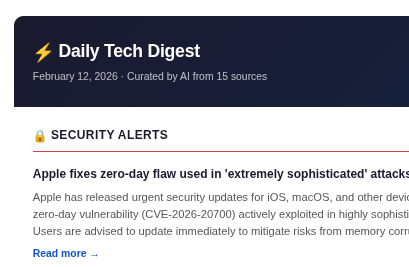
Here’s what an actual newsletter looks like in your inbox:
$ cat architecture.md
How It Works: The 30,000-Foot View
Here’s what the workflow looks like in n8n:
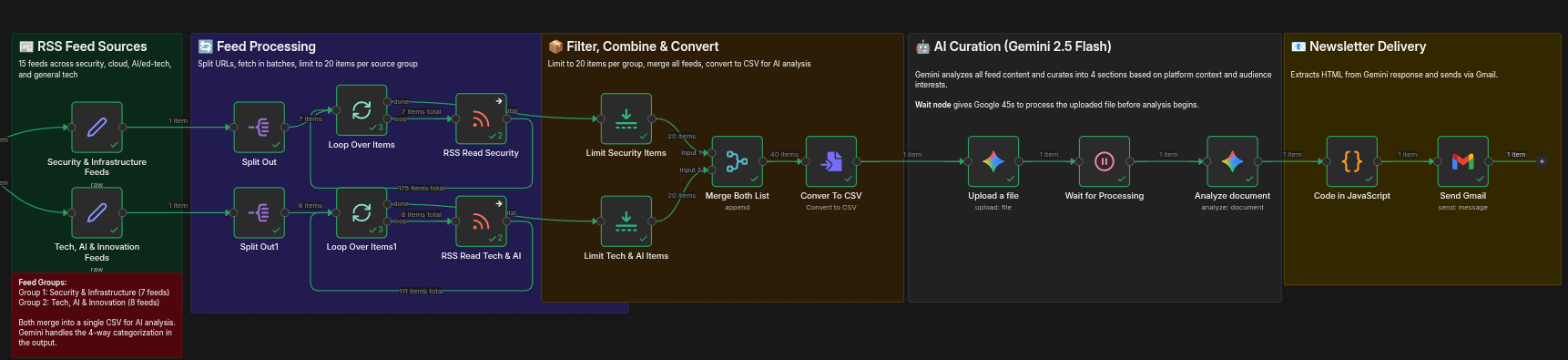
And here’s the flow at a high level:
Schedule (9 AM daily)
    |
    +---> Security Feeds (7 RSS sources) ---> Fetch ---> Limit to 20 items
    |                                                          |
    +---> Tech & AI Feeds (8 RSS sources) ---> Fetch ---> Limit to 20 items
                                                               |
                                                     Merge (max 40 items)
                                                               |
                                                        Convert to CSV
                                                               |
                                                    Upload to Gemini Files API
                                                               |
                                                       Wait 45 seconds
                                                               |
                                                   Gemini 2.5 Flash Analysis
                                                               |
                                                     Extract HTML output
                                                               |
                                                       Send via Gmail
Let’s break each stage down.
Stage 1: RSS Feed Collection
The workflow starts with a schedule trigger that fires once daily. It kicks off two parallel paths, each with a Set node containing a list of RSS feed URLs.
Security & Infrastructure Feeds (7 sources)
- BleepingComputer — Excellent threat and vulnerability reporting
- The Hacker News — Fast on CVEs and APT campaigns
- Krebs on Security — Deep-dive investigative security journalism
- Dark Reading — Enterprise security news
- CISA Advisories — Official U.S. government vulnerability alerts
- SecurityWeek — Broad security industry coverage
- Schneier on Security — Bruce Schneier’s legendary security analysis
Tech, AI & Innovation Feeds (8 sources)
- Hacker News (via hnrss.org) — The Y Combinator tech community
- Ars Technica — In-depth tech journalism
- The Verge — Product launches and tech culture
- TechCrunch — Startup and product news
- AWS Security Blog — Directly relevant to cloud practitioners
- Docker Blog — Container ecosystem updates
- MIT Technology Review — AI/ML research and trends
- EdSurge — Education technology news
Each path splits the URLs, loops through them in batches, and fetches the RSS content. The RSS Read nodes are configured with onError: continueRegularOutput, so if a feed is temporarily down, the workflow keeps going instead of crashing.
Stage 2: Filter and Merge
Here’s a critical piece that took some debugging to get right. Without limits, 15 RSS feeds can return hundreds of articles. Sending all of that to Gemini will cause timeouts.
Each path has a Limit node that caps output at 20 items. This keeps the total to a maximum of 40 articles — more than enough for Gemini to find 20–25 great picks, but small enough to process reliably.
The two paths converge into a single Merge node, combining security and tech feeds into one dataset.
The merged stream hits n8n’s built-in Convert to File node (set to CSV mode). One node, zero configuration.
Stage 3: AI Analysis with Google Gemini
This is where the magic happens, and it’s a three-step pipeline:
Send the file to Google’s Gemini Files API. It returns a temporary file URI that Gemini can reference during analysis.
// uses the Google Gemini node in “file upload” mode
This is not optional. The Files API needs time to process the upload. Without this delay, the analysis node tries to reference a file that isn’t ready yet — and you get a cryptic timeout error that looks like the server is offline.
// n8n Wait node, amount: 45 seconds
The Gemini 2.5 Flash model receives the file URI along with a detailed prompt. The prompt specifies:
- The 4 output sections and how many items each should have
- Your platform and tech stack context (so it prioritizes relevant content)
- The HTML template to format the output
- Tone and style guidelines
Gemini reads through all 40 items, picks the best ones for each category, writes 2–3 line summaries, and outputs a complete, styled HTML document.
The full Gemini prompt
This is the exact prompt from the “Analyze document” node. It’s the single most important piece of the workflow — the quality of your newsletter depends on how well you customize this for your audience.
# Daily Tech Digest - AI Content Curator

You are a senior tech content curator creating a professional daily newsletter
for security engineers, DevOps practitioners, and ed-tech professionals.

## Input
You will receive a CSV file containing RSS feed items from multiple sources
spanning cybersecurity, cloud infrastructure, AI/ed-tech, and general
technology news.

## Audience & Platform Context
Your readers work with:
- Servers: Ubuntu 22.04 LTS, Alpine Linux (Docker containers)
- Cloud: AWS & GCP (IAM, Secrets Manager, Lambda, Cloud Functions, S3, GCS)
- Containers: Docker, Docker Compose, Proxmox LXC
- Databases: PostgreSQL
- Automation: n8n, Ansible, bash scripting
- Monitoring: Grafana, Prometheus, Loki, Uptime Kuma
- Endpoints: Windows laptops (corporate)
- Industry: Ed-tech — AI-powered learning platforms

## Task
Analyze all items and produce a curated HTML newsletter with exactly 4 sections:

### Section 1: Security Alerts (3-5 items MAX)
The most critical, actionable security news. Prioritize:
- Actively exploited zero-days and high-severity CVEs
- Threats targeting Linux, Docker, AWS/GCP, PostgreSQL, Node.js, or Windows
- Supply chain attacks, secrets exposure, container escapes
- Keep this section SHORT. Only include items requiring immediate awareness
  or action. Skip generic awareness content.

### Section 2: Cloud & DevOps (5-8 items)
Infrastructure and operations news:
- AWS, GCP service announcements and best practices
- Docker, Kubernetes, container orchestration updates
- CI/CD, infrastructure as code, observability
- Database operations, backup strategies, Linux admin

### Section 3: AI & Ed-Tech (5-8 items)
AI and education technology:
- LLM developments, NLP/ML breakthroughs, AI tooling
- Education technology, higher-ed innovation
- AI-powered learning and engagement platforms
- Research papers and practical AI applications

### Section 4: Tech & Innovation (5-8 items)
General technology and developer news:
- Developer tools, frameworks, open source projects
- Notable Hacker News discussions and community picks
- Product launches, startup news
- Programming language and ecosystem updates

## Formatting Rules
- Summarize each item in 2-3 concise, informative lines
- Every item MUST include its source URL as a clickable link
- If an image URL is available in the data, include it below the title
- Tone: Professional but approachable — curious, concise, practical
- Do NOT include items that are paywalled, duplicates, or low-quality
- Output a complete, valid HTML document using the template below
The prompt also includes a full HTML/CSS template that defines the visual design of the newsletter (dark gradient header, red accent colors, clean card layout). The template is included in the downloadable workflow JSON.
Stage 4: Delivery
A JavaScript Code node pulls the HTML out of Gemini’s response and strips any markdown code fences (```html) that Gemini sometimes wraps around its output.
// 4 lines of JavaScript — that’s it
The Gmail node fires the formatted HTML to your inbox with a date-stamped subject line. Done.
$ check requirements
Prerequisites
Before you build this, you’ll need:
| Requirement | Details |
|---|---|
| n8n instance | Self-hosted (Docker recommended) or n8n Cloud. Community edition works fine. |
| Google Gemini API key | Free tier at aistudio.google.com. Gemini 2.5 Flash is included. |
| Gmail OAuth2 credentials | Set up in n8n’s credential manager. Requires a Google Cloud project with Gmail API enabled. |
A Note on the Gemini Free Tier
As of this writing, Google’s Gemini API has a generous free tier that easily covers a single daily workflow run. You’re making two API calls per execution (file upload + document analysis), and the input is well under the token limits. I’ve been running this daily for months without hitting any billing.
That said, always check the current Gemini pricing — Google could change this at any time.
$ vi config.yml
Customizing It: Making It Yours
This is the most important section. The workflow as-is is tuned to my interests. Here’s exactly what you need to change.
1. RSS Feeds (The Easy Part)
The two Set nodes at the beginning of the workflow contain JSON arrays of RSS feed URLs. Swap these out for whatever sources you care about.
Tips for choosing feeds:
- Aim for 12–18 total feeds. Fewer than 10 and you might not get enough variety. More than 20 and you’re adding processing time for diminishing returns.
- Make sure the URL is an actual RSS/Atom feed (ends in
/feed/,/rss, or.xml), not just the website homepage. - Test your feeds! Paste the URL into a browser — you should see XML, not a webpage.
- If a feed is unreliable, don’t worry too much. The RSS Read nodes are configured to continue on error, so one bad feed won’t crash the workflow.
Industry-specific feed ideas
| If you work in… | Consider adding… |
|---|---|
| Finance/FinTech | American Banker, Finextra, PaymentsSource |
| Healthcare | Health IT News, HIPAA Journal, Fierce Healthcare |
| Gaming | Gamasutra, Game Developer, IGN |
| Data Science | Towards Data Science, KDnuggets, Data Elixir |
| SysAdmin/MSP | Spiceworks, MSPmentor, Redmond Magazine |
2. The Gemini Prompt (The Important Part)
The “Analyze document” node contains the prompt that drives everything. This is where you define:
Your platform context — Update this section to match your actual tech stack:
## Audience & Platform Context
Your readers work with:
- Servers: Ubuntu 22.04 LTS, Alpine Linux (Docker containers)
- Cloud: AWS & GCP (IAM, Secrets Manager, Lambda, Cloud Functions)
- Containers: Docker, Docker Compose, Proxmox LXC
- Databases: PostgreSQL
- Automation: n8n, Ansible, bash scripting
...
Change this to whatever you actually use. Running Azure instead of AWS? Swap it. Using MySQL instead of PostgreSQL? Update it. The more specific you are, the better Gemini will filter for relevance.
Your 4 sections — You don’t have to keep my categories. Running a DevOps team? Maybe your sections are:
- Security Alerts
- Kubernetes & Cloud Native
- CI/CD & Tooling
- Industry News
The prompt tells Gemini exactly what each section should contain, how many items to include, and what to prioritize. Edit freely.
The HTML template — The template at the bottom of the prompt defines the visual output. The current design uses a dark gradient header with red accent colors. Change the colors, fonts, or layout to match your brand. It’s just HTML and inline CSS.
3. Email Settings
- Recipient: Update the
sendTofield in the Send Gmail node - Subject line: Currently set to
Daily Tech Digest - {date}. Change the prefix to whatever you want. - Gmail credentials: You’ll need to set up Gmail OAuth2 in n8n’s credential manager. This requires a Google Cloud project, but n8n’s Gmail credential docs walk you through it.
4. Schedule
The trigger is set to 9 AM daily. Adjust this in the Schedule Trigger node to whatever time works for you. Want it waiting for you when you start work at 7 AM? Go for it.
$ cat lessons_learned.log
Lessons Learned (The Hard Way)
A few things I ran into while building and operating this workflow:
Capping the Payload
The original version of this workflow had no item limits. Ten RSS feeds can easily return 200+ articles. Uploading all of that as a CSV and asking Gemini to analyze it caused consistent 5-minute timeouts. The fix was adding Limit nodes to cap each feed group at 20 items, keeping the total payload manageable.
Latency is a Feature, Not a Bug
Google’s Gemini Files API accepts your upload and returns a file URI immediately, but the file isn’t actually ready for analysis yet. It needs processing time. Without a delay between the upload and analysis steps, you’ll get timeout errors that look like the server is offline. 45 seconds has been reliable for me.
Abandoned Feeds Die Quietly
Because the RSS Read nodes are configured to continue on error (which is what you want), a dead feed won’t crash your workflow — but it also won’t tell you it’s broken. Periodically check your feeds are still alive. I had ThreatPost (shut down in 2022) and a SANS listing page (HTML, not RSS) wasting processing cycles for months before I noticed.
A quick way to check:
curl -sI <feed_url> | head -5You’re looking for a 200 status and Content-Type: application/xml or text/xml. If you get HTML back or a redirect chain, the feed is probably dead.
Upgrade Your Nodes
n8n occasionally releases updated versions of nodes with bug fixes and improvements. The Google Gemini node, for example, went from v1 to v1.1 with improvements to timeout handling. Check the node version indicator in the n8n editor — if it says a newer version is available, upgrade it.
Dial In Your Prompt
The quality of your newsletter is directly proportional to the quality of your prompt. Be specific about:
- What your audience cares about
- What platforms they use
- How many items per section
- What tone you want
- What to exclude (paywalled content, duplicates, generic filler)
Vague prompts produce vague newsletters. Specific prompts produce newsletters you’ll actually read.
Expect Failures (and Plan for Them)
This workflow runs unattended every morning. When it breaks — and it will eventually — you want to know about it before you realize your digest didn’t arrive. n8n has a built-in Error Workflow feature: create a simple workflow that sends you a Pushover/Slack/email notification when any workflow fails, then set it as the error handler in your workflow settings. It takes five minutes to set up and saves you from wondering “did it run today?” over your morning coffee.
$ cat invoice.txt
Cost Breakdown
| Component | Cost |
|---|---|
| n8n (self-hosted) | Free (open source) |
| Google Gemini API | Free tier (2 calls/day is well within limits) |
| Gmail sending | Free (standard Gmail) |
| RSS feeds | Free |
| Total | $0/month |
If you’re using n8n Cloud instead of self-hosting, that’s the only cost — and even their starter plan supports this workflow easily.
$ wget workflow.json
Download the Workflow
You can download the complete n8n workflow JSON and import it directly into your n8n instance:
The workflow has been sanitized — all credential IDs and personal details have been replaced with placeholders. After importing:
- Open each Google Gemini node and select your Gemini API credential
- Open the Send Gmail node and select your Gmail OAuth2 credential
- Update the
sendToemail address - Customize the RSS feeds and Gemini prompt for your interests
- Activate the workflow
$ cat roadmap.md
What’s Next?
A few ideas for extending this workflow:
- Slack/Teams delivery: Add a Slack or Microsoft Teams node instead of (or in addition to) Gmail
- Weekly digest mode: Change the trigger to weekly and bump the item limits for a meatier weekend read
- Multiple audiences: Duplicate the workflow with different prompts for different teams (security team gets a security-focused digest, dev team gets a tools-focused one)
- Archive to Notion/Google Docs: Add a node to save each newsletter for future reference
- RSS feed health monitoring: Add a separate workflow that periodically checks if your feeds are still returning valid XML
$ exit
Wrapping Up
This workflow scratches an itch I’ve had for years: I wanted a daily tech briefing that was actually relevant to what I work on, without paying for a newsletter service or relying on social media algorithms to surface important news.
The combination of n8n’s workflow automation and Gemini’s ability to read, filter, and summarize content is genuinely powerful. The whole thing runs unattended, costs nothing, and produces output I’m happy to share with my team.
If you build your own version of this, I’d love to hear about it. What feeds did you choose? What sections did you create? Drop me a line at thedelay.com.